Selling on Wild Apricot with Ecwid
Are you using Wild Apricot as your site builder? You can add Ecwid shop there with ease. Wild Apricot is a web-based software for small associations and nonprofits, it helps manage membership, website, donations, events, and fundraising.
You can follow these steps to add your Ecwid store to a Wild Apricot site:
- Log into your account with Wild Apricot.
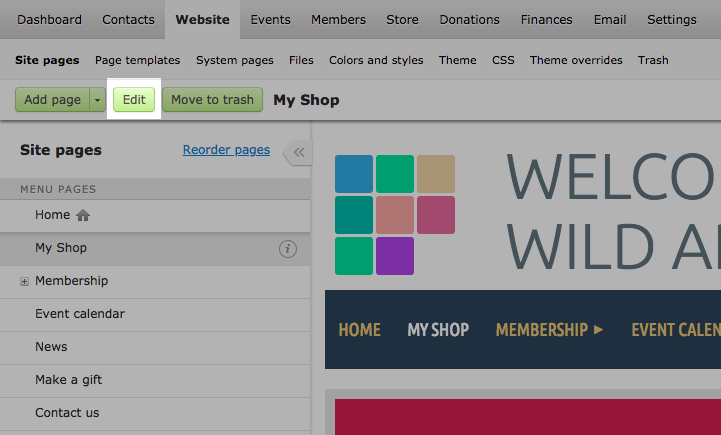
- In your Wild Apricot editor proceed to Website → Site pages.
- Open a page where you’d like to add a store and click Edit:
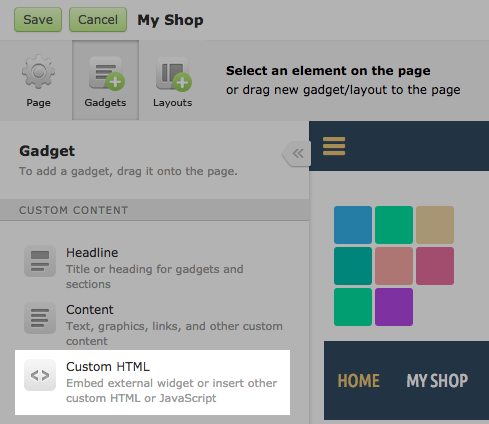
- Click Gadgets in the top left corner:

- Drag the Custom HTML gadget to the preferred place in your page:
- After you have inserted the gadget to the page, hover over it and click Settings:

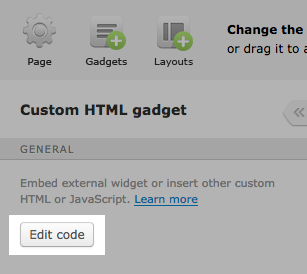
- Within the gadget settings on the left, click Edit code:
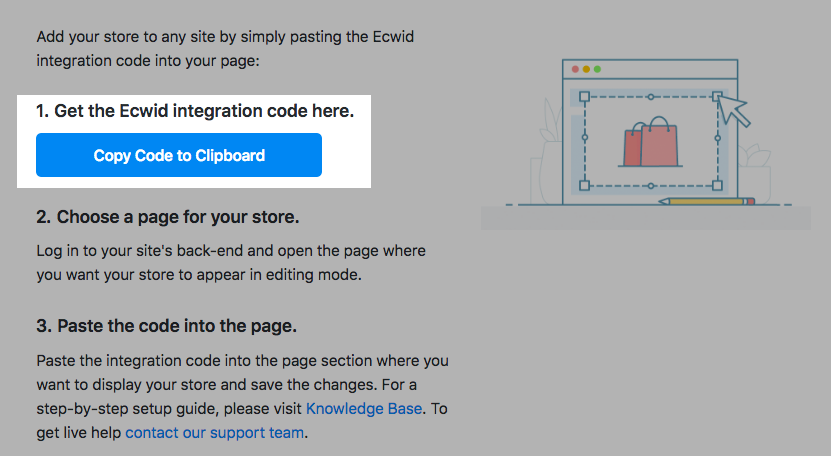
- In a new browser tab open your store admin → Website. Scroll down to the "Add your store to one more website" section and click Pick Platform → Other platforms and sitebuilders. Grab your Ecwid integration code by clicking Copy Code to Clipboard:
- Go back to Wild Apricot editor and insert the copied Ecwid code into the Custom HTML gadget added by you earlier to the page:
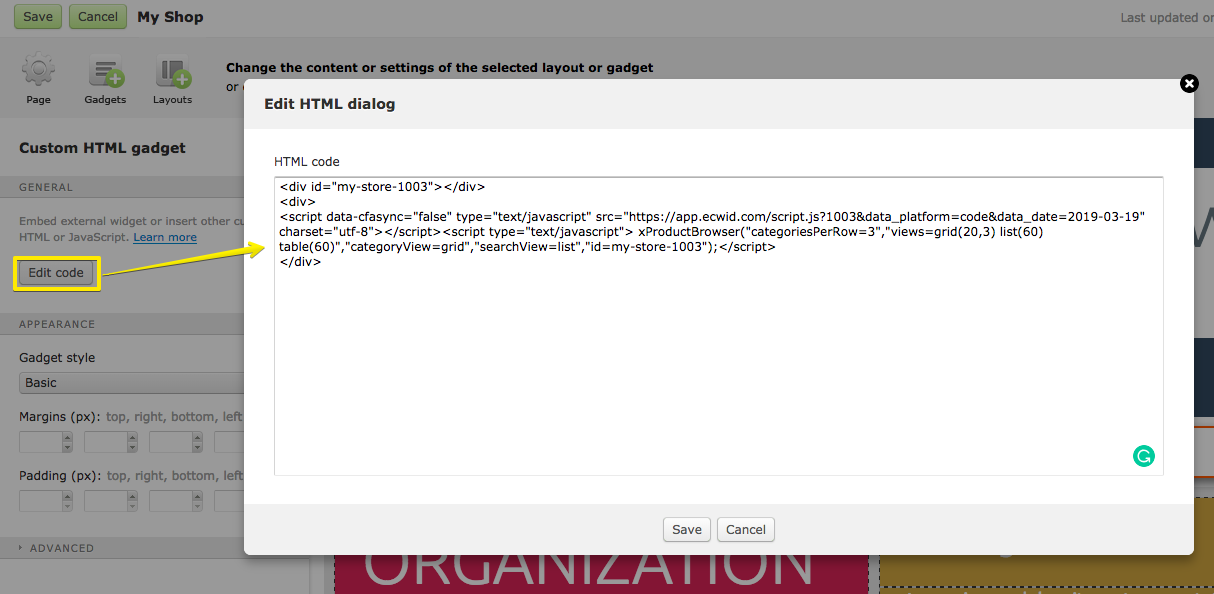
- Click Save in the Edit HTML dialog, then click Save in the page.
- That’s it! To check the result, click Public View in the top right corner of the Wild Apricot editor: